Concepts : Layer Attachments : About
What is a layer attachment/metadata?
Most image editors provide long lists of layer properties that can be edited by the user. As these programs become more complex, more properties are added, with some only applicable to specific usage scenarios, leading to a long and complex web of properties for each layer. That’s messy.
Chasys Photo solves this problem in a very simple way. All layers have a small set of properties that are applicable for most usage scenarios, as shown above. For more specific use, the layers allow – yes, you guessed it – the addition of an attachment (or metadata), much like the attachments you use with e-mail. This information is saved along with the layer and is treated as part and parcel of the layer; it is always preserved when the layer is saved, copied, moved, etc. If the layer were to be opened for editing later, this information will be restored and used together with the other layer properties.
Consider, for example, a text layer. Such a layer will have the normal properties like hidden, locked and blending modes, plus a TEXT attachment. The TEXT attachment, usually just a few KB of data at most, will hold all the information relevant for text, including the data needed to regenerate it (e.g. fonts used, angle, the actual text, colors, styles), thus making it fully re-editable.
As a plus, plug-ins are allowed to add, read and edit attachments – basically making layer properties dynamic and extensible. An example of this is the way the Icon and Cursor plug-in uses the hotspot attachment to specify the cursor’s hotspot, while the JPEG plug-in uses the mark-up attachment to store EXIF data on a per-layer basis in a way that is directly user-editable within Chasys Photo. Most plug-ins will also interact with the PPI (DPI) of an image to control the printed size via the PHYS (Physical Dimensions) attachment.
Attachments can be in various formats; each format is identified by a four letter code, e.g. MARK, PATH or NOTE. The four letter code is case sensitive, but you don’t need to worry about this because it’s handled internally. You can manage a layers attachments via the attachment manager dialog:
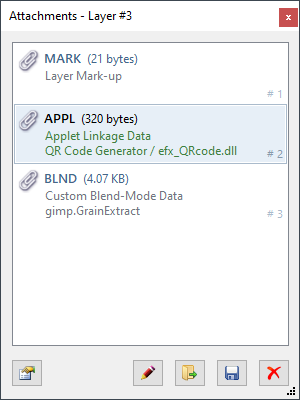
The four-character code of each attachment, as well as its size and description are shown. You can import, export or delete any attachment. You can also view some types, such as mark-ups. While the size of attachments is not limited, there is a maximum number of attachments allowed per layer. Also note that there are controls on the allowed types and usage of metadata as outlined in the SDK under Layer Attachments. The use of very large attachments (in excess of 64KB) is allowed but discouraged because doing so can significantly increase memory usage and disk-space consumption.
Each layer can have several attachments. Most are added automatically by the tools you use, for example, the Pen and Path tool uses PATH, while the Text tool adds TEXT. Some are used by objects and plug-ins, for instance, the MARK (mark-up) attachment is used by the brush object to store brush attributes and by the cursor load/save modules store hotspot and color-depth information, while BLND is added by the Photoshop PSD file plug-in to add support for Photoshop-specific blending modes.
Attachments can even by used to link plug-ins, as is the case with the QR Code Generator plug-in and its use of the APPL attachment. Whenever you use the QR Code Generator to build a QR Code, it adds an APPL attachment that instructs Chasys Photo to open it when you double-click the QR Code, thus making it fully re-editable in a very intuitive fashion.