Language Studio
Introduction
Chasys Photo supports user interface languages other than English via the use of LLTE Language Files. Although you can edit language files manually using any text editor, doing so can be a tedious process. It can also be difficult to figure out which phrases have changed and which phrases have been introduced by new versions. That’s where LLTE Studio comes in. This utility, included with Chasys Photo, simplifies the process by providing an interface that compares your language file with a standard template (which it will occasionally ask for permission to refresh) and if it finds any deltas between your file and the template, it will highlight them and give you options for quickly jumping between them and making the necessary edits. It will also handle the formatting and versioning details.
Using Language Studio
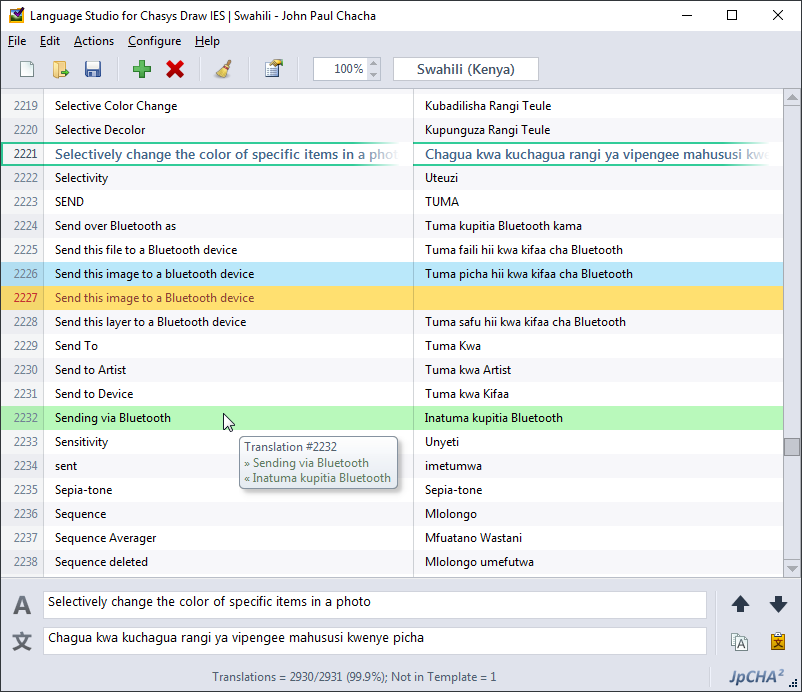
The Language Studio has a straight-forward interface that lists all phrases and their translation, highlighting missing translations (in red) and obsolete translations (in yellow). You can jump between highlighted translation using the provided skip-forward and skip-backward buttons. The status bar shows a summary of the language file, including the target language and the number of valid translations as compared to the template.
When you select a phrase, the original phrase and its translation are populated into the edit boxes at the bottom. You can change the text using those edit boxes as you wish; the changes are applied immediately.