Tools - Table of Contents
Chasys Photo Editor Tools (in order of appearance)
Here are the tools provided in Chasys Photo in the order in which they appear. Please note that these help pages can be accessed directly from within Chasys Photo Editor at any time by pressing the F1 button on the keyboard. The help page for the tool you are currently using will be displayed.


A note on Quick-Select and Tool Toggle
When quick-select (tool shortcuts) is enabled, a letter is displayed at the top left corner of the icons of some tools. Pressing the indicated letter on the keyboard while drawing switches to that tool; e.g. pressing the 'H' key to enable the Hand tool when using the default mappings. You can customize the mappings of quick-select from the Configure / Shortcut Keys menu:
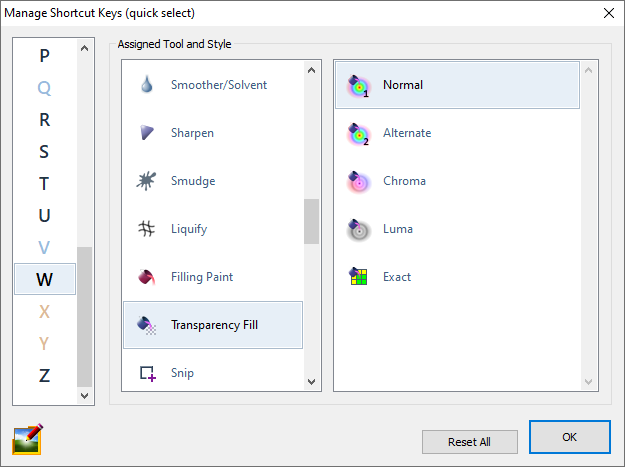
Clicking the middle mouse button (or pressing the click-wheel) toggles the current tool with the most recently used tool; pressing it again reverses the change. This can also be accomplished by pressing the Tab key on the keyboard.