Adjustment Layers
What is an Adjustment Layer?
Adjustment layers are special layers that adjust the pixels on the layers below them. They allow you to perform non-destructive image editing by applying adjustments to your image without permanently changing pixel values. For example, rather than making a Curves adjustment directly to an image, you can create an adjustment layer and make the Curves adjustment to that instead. The adjustments are stored in the adjustment layer and apply to all the layers below it. You can correct multiple layers by making a single adjustment, rather than adjusting each layer separately. You can change or discard the adjustments at any time.

Creating Adjustment Layers
An adjustment layer can be created in two ways:
| Option | Details |
|---|---|
| Using New Layer | When creating a new layer, you’ll be offered the option of creating an adjustment layer. An adjustment layer created by this method will be fully opaque. |
| Using Attach Adjustment Layer under the Adjustments menu | This option creates an adjustment layer that is customized for the current layer. It will be the same size and position as the current layer and just above it in the list of layers. Additionally, if the current layer has transparent parts, the adjustment layer will also be marked accordingly. The original layer and the new adjustment layer will then be grouped together. |
Chasys Photo can also import adjustment layers created by other image editing software; specifically, it supports Adobe Photoshop PSD images containing adjustment layers in the Photoshop format. Adjustment layers are marked with a special marker, and the information used by an adjustment layer is stored in an ADJU layer attachment.
Adjustment Layer Attributes
Double-clicking an adjustment layer or clicking “More...” in the Layer Properties window for an adjustment layer brings up the Adjustment Layer Attributes window. The window uses a multi-page design as illustrated below. Using this window, you can set up the various adjustments (remember, Chasys Photo supports multiple adjustments per adjustment layer).
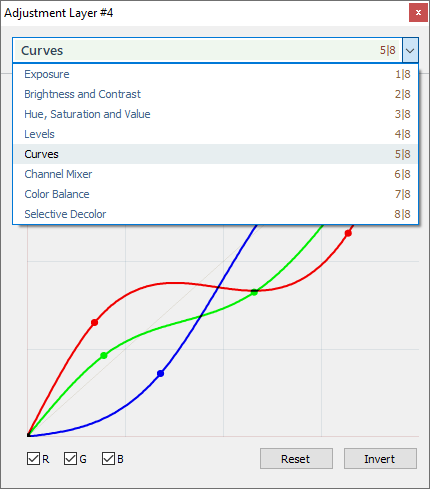
The adjustment options provided by the Adjustment Layer Attributes window work exactly like the adjustment options under the Adjustments menu, with one exception: AQuE is not supported. The reason for that difference is that adjustment layers need to be rendered in real-time, and can therefore not provide the amount of processing time required for complex tasks such as AQuE.