Image Modes
Introduction
An image-mode is a global parameter that tells Chasys Photo how to interpret layers. For example, the “frame animation” image-mode tells Chasys Photo to treat layers as video frames, while the “image list / mipmap” image-mode tells it to interpret them as copies of the same image at different resolutions (for example, what you find in an icon file).
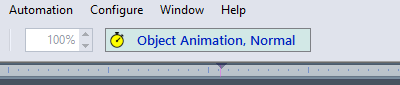
The “Composite” Image Mode
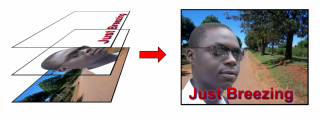
The first sub-mode of this mode is the default image-mode in Chasys Photo. The layers are interpreted as composite layers of a single image, and are combined to create a single final visual output as dictated by the blending-modes and other layer attributes. Put differently, the layers are treated as transparent sheets of transparent plastic with images drawn on them, that can be stacked on top of each other, so that you can see the lower sheets through the transparent parts of the upper sheets as shown below:
There are two sub-modes under this group:
| Sub-mode | Meaning |
|---|---|
| Normal | Everything works as explained above. |
| Clipped | The output is clipped in the workspace as well to give an editing experience that is similar to other image editors for those who are not used to free-style layering. |
| Multi-page | The layer stack can be split into pages using page-break layers, allowing composite images to have multiple pages. |
The “Image List” Image Mode
In the image list image-mode, many images, possibly with different content and resolution, are treated as separate entities. The destination device then has a choice of images to choose from, depending on the intended display resolution and/or other factors. This mode is primarily used for creating PDF documents, albums, 3D images, icons and brushes, but may also be used for any situation where multiple and possibly unrelated images are needed in one file.
There are three sub-modes under this group:
| Sub-mode | Meaning |
|---|---|
| Normal | Everything works as explained above. |
| Mipmap | Chasys Photo assumes that the images only differ in resolution; the content is assumed to be the same. Display devices may therefore choose to only show the highest resolution image or the image with the most appropriate resolution. |
| Stereoscopic 3D | The list is made up of two images, one for the left eye and another for the right eye. Chasys Photo uses these two views to render a 3D image using stereoscopy. By default, the anaglyph method is used, but the target device is free to use any 3D rendering technology. |
The “Frame Animation” Image Mode
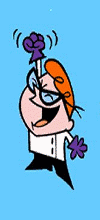
The frame animation image-mode is used for short videos or animations by way of defining the frames individually. In this mode, only one layer is displayed at a time, one after the other, after a duration of time dictated by the frame delay layer attribute. It is analogous to the way an artist can draw a slightly different figure on each page of a pad of paper so that when you flip between sheets rapidly, the drawing appears to move. Shown below are two layers in frame animation mode:
 |
 |
Gives |  |
NB: I think someone owns the copyright to this cartoon character. If so, copyright, them.
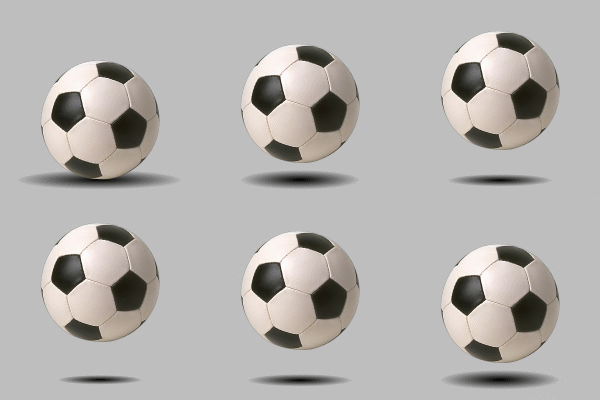
You are not limited to two layers, however. You can have hundreds of frames in your animation if you so wish. Here is a more elaborate (but not detailed or physics-correct) example:
There are two sub-modes under this group:
| Sub-mode | Meaning | |||
|---|---|---|---|---|
| Normal | In editing mode (i.e. when using Chasys Photo Editor), all the frames are shown as separate entities that can be manipulated independently. You have the option of hiding individual frames to exclude them from the animation. | |||
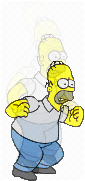
| Onion-Skin | In editing mode (i.e. when using Chasys Photo Editor), all the frames are shown as one entity using the onion-skinning method of animation. This technique involves making frames translucent and projecting them on top of each other to mimic the method used in traditional cartoon animation, where the individual frames of a movie were initially drawn on thin onionskin paper over a light source. Doing so allowed the animators to draw new frames using the old ones as references, thereby making it easy to achieve smooth transition between the frames in the final video. The image below shows the onion-skinning of the animation of Homer Simpson jumping:
|

The “Object Animation” Image Mode
The object animation image-mode is used for short videos or animations by way of defining the behaviour of objects. In this mode, each layer that has some movement or change associated with it is assigned special attributes that define that behaviour, which Chasys Photo then uses to animate the layer in the preview window. The changes are defined against time in using the Animation Timeline window shown below:

The following attributes can be animated:
| Attribute | Meaning |
|---|---|
| x_pos, y_pos | The X and Y positions of the layer. These attributes can be animated to move the layer over time. |
| alpha | The transparency of the layer. This attribute can be animated to change the visibility of the layer over time. |
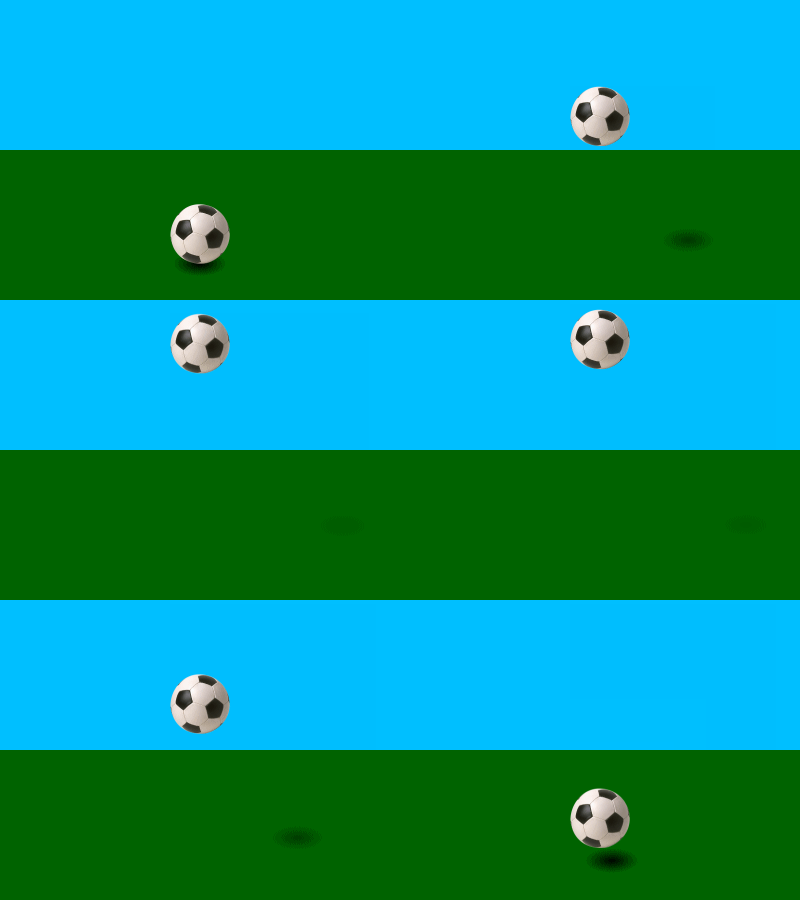
Very elaborate animations can be created using such definitions; the animation below is an example done using this method:
There’s only one sub-mode under this group:
| Sub-mode | Meaning |
|---|---|
| Normal | Normal timeline-based editing mode. |